Outreach & letters
Send direct mail from the CRM, review campaign cost, and cancel pending mail orders.
Updated · June 2026
Pillar's Outreach tools let your team send printed letters from CRM projects without exporting a list or handing work to an admin.
Mail: anyone on the team can send#
Any member of your organization can create, send, and cancel mail orders from the Mail tab in the CRM. These actions are no longer limited to admins or owners.
Members still need the normal account requirements:
- They must be signed in to your organization.
- Your organization must have an active subscription.
- Your organization must have enough credits for the mailing.
Send a mail order#
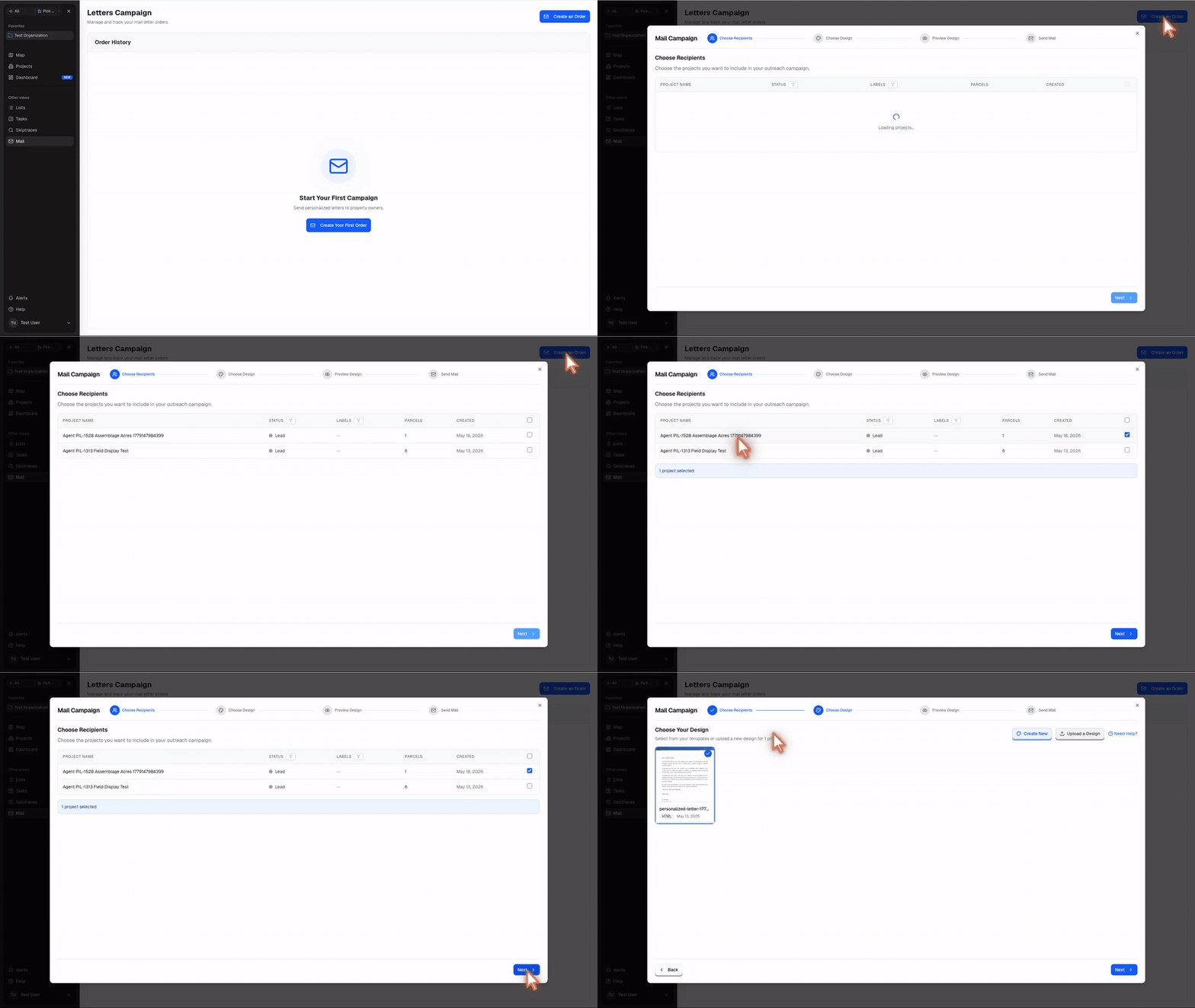
- Open CRM and select Mail in the sidebar.
- Click Create an Order. If you have no previous orders, click Create Your First Order.
- In Mail Campaign, choose the projects you want to mail. You can filter by Status or Labels before selecting projects.
- Click Next to move to Choose Your Design.
- Pick an existing design, click Create New, or click Upload a Design.
- Continue through Preview Design.
- On Send Mail, review the recipient list, optional Return Address, and Campaign Cost.
- Click Send Mail (x credits) to submit the order.
Pillar calculates mail cost as 13 credits per recipient. If the organization does not have enough credits, the send button is disabled and the cost panel shows how many more credits are needed.
What gets checked before sending#
The review step shows the final mailable recipients. If Pillar cannot find a deliverable mailing address for the selected projects, those recipients are not available to send.
For uploaded HTML designs, Pillar can preview personalized variables before you send. PDF designs are sent as uploaded.
Cancel a pending mail order#
Any organization member can also cancel eligible mail orders:
- Open CRM and select Mail.
- Find the order in Order History.
- If the order status is Pending, click Cancel in the Actions column.
- Review the confirmation dialog, including the recipient count and refund amount.
- Click Cancel Order.
Canceled orders refund the mail credits to the organization. Orders are only cancellable before the mail provider releases them for printing, shown in the app as pending orders before the following business day.