
Creating lists
Turn a map selection or filter into a reusable group of parcels.
Updated · June 2026
A list is a saved group of parcels. Lists are how you reuse a search, share it with teammates, and feed it into downstream actions like skip tracing, project creation, and outreach.
Creating a list from the map#
- Open Map and run a property search. Type criteria into the Pillar composer on the left side of the map, or click Bulk & saved searches (the sliders icon next to the composer) and choose County, City, or Draw a Polygon.
- Apply your filters until the result set is the group of parcels you want to keep.
- Click Save to list at the bottom of the results sidebar.
- Name the list. Be descriptive — "Denver infill under 1ac, not institutional" reads better than "list 3" six weeks from now.
- Click Save Parcels. After the save finishes, use View List to open it, or go to Lists from the left navigation later.
Creating a list from a selection#
If you manually select parcels on the map, save that selected result set the same way: open the results sidebar, click Save to list, name the list, and save it. The list stores the parcels selected at the time you save.
Importing project spreadsheets with Pilly#
If your source is a spreadsheet or geospatial file, use the import flow instead of rebuilding the list by hand. Pilly can read the file, propose a column mapping, and create projects from the rows. If a project imports without a parcel match, Pillar gives you a follow-up picker to attach the right parcel from the map.
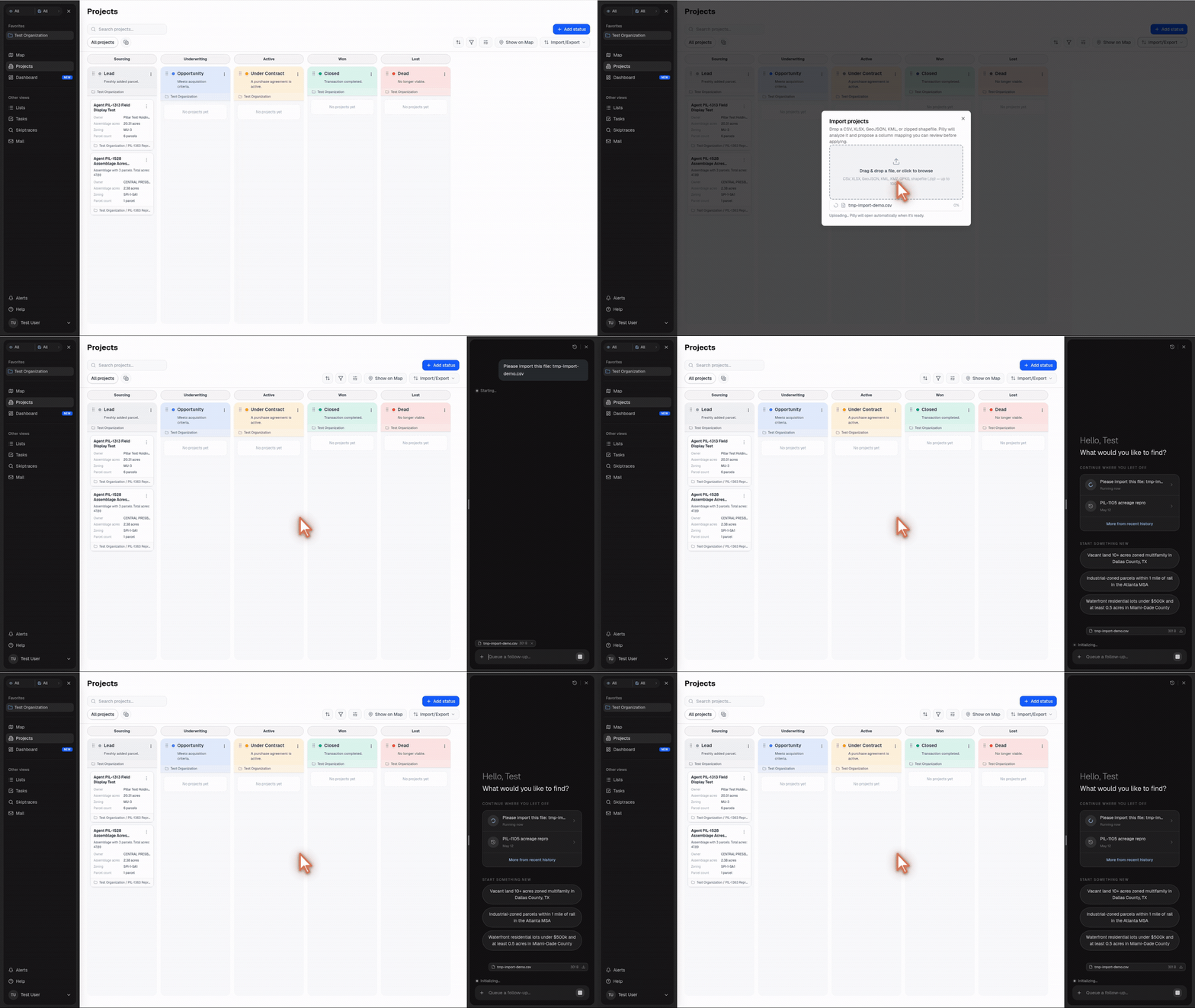
- Open Projects.
- Click Import/Export.
- Choose Import projects.
- Drop a CSV, XLSX, GeoJSON, KML, KMZ, GPKG, or zipped shapefile, or click the drop zone to browse. Files can be up to 100MB.
- Pilly opens the agent panel and starts an import-planner run for the file.
- When the Import plan ready card appears, click Review & approve.
- In the Import editor, compare Input file against Output projects. The right panel explains what Pilly mapped, including the picked sheet, project name column, coordinate columns, new custom fields, new statuses, warnings, and rows that will be skipped.
- If the mapping is wrong, type the correction in Tell Pilly to change something... and send it. Pilly will revise the plan.
- When the preview looks right, click Approve & import.
Rows with an empty project name are skipped. Rows with missing coordinates are not skipped: they import as projects without geometry so you can attach a parcel afterward. After import, the result card shows how many projects were added, how many linked to parcels, and how many need parcels.
To attach a parcel to an imported project:
- Open the project.
- If it has no geometry and no parcels, click No parcel — Select?.
- Pillar opens the map in Pick a Parcel mode.
- Click the parcel to link.
- Click Link Parcel.
Tags#
Tags let you group related lists. Common patterns we see:
- By market — "Austin," "DFW," "Miami."
- By product type — "BTR," "infill," "land bank."
- By owner type — "absentee," "LLC," "senior."
- By pipeline stage — "needs skip trace," "ready for outreach," "done."
Tags are freeform — type anything, and Pillar will autocomplete from your existing tags.
Sharing lists#
All lists are visible to every member of your organization by default. You can mark a list as private (visible only to you) from the list's settings. Admins can always see private lists, for auditability.
Deleting and archiving#
- Archive — hides the list from the main view but keeps the data. Archived lists show up in the "Archived" filter.
- Delete — removes the list permanently. Deleted lists cannot be restored, so prefer archive unless you're sure.
Parcels themselves are never deleted when a list is — they live in the parcel dataset whether you have a list pointing at them or not.
What's next#
Once you have a list, you'll usually want to enrich it with owner contact information, push it into a project, or export it.