
Team & roles
Managing Settings, organization name, teammates, roles, and removals.
Updated · June 2026
Pillar is built for teams. Team availability and billing depend on your plan: Pro teams can invite members from the Account page and adding a member can add a paid seat, while Enterprise team changes may be support-assisted.
Settings layout#
Open the account menu in the app sidebar and choose Settings. The Settings dialog uses a left-side navigation rail so you can move between Profile, Organization, Billing, Team, Credits, and Connected apps without leaving the dialog.
Owners and admins see the Organization section. Members can still open Settings, but organization and team management actions are limited to owners and admins.
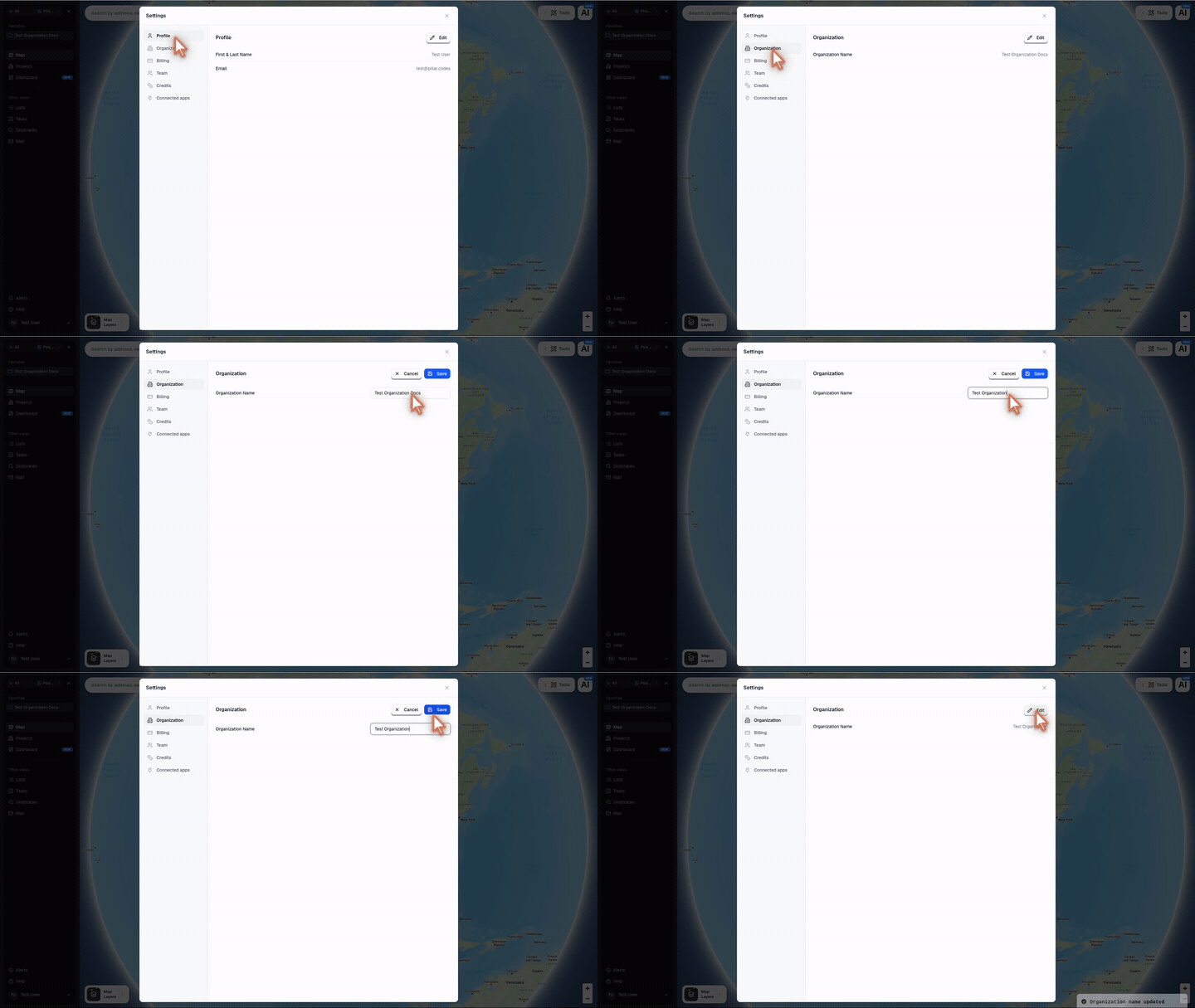
Rename your organization#
From Settings → Organization:
- Click Edit.
- Update Organization Name.
- Click Save.
The new name appears immediately in Settings and in the app sidebar. Organization names must be 100 characters or fewer and cannot be blank.
Roles#
Three roles exist today:
| Role | Can do |
|---|---|
| Owner | Everything. Plus: change member roles, remove owners when another owner remains, change billing, buy credits, and add county zoning. |
| Admin | Full product access. Plus: invite/remove members, change billing, buy credits, and add county zoning. |
| Member | Full product access. Cannot change billing, membership, or roles. |
Every organization needs at least one owner. You can't remove the last owner — invite a replacement first, or let us know at support@pillar.codes if you need to transfer ownership.
Inviting a teammate#
From Account → Team → Invite member:
- Enter their email address.
- Choose Admin or Member.
- Click Send.
They get an email with a signup link. Once they accept, they're in your org with the role you assigned. Owners can change roles later.
Sharing one folder#
Pillar access is managed at the folder level. If you want a teammate to see only one project, put that project in its own folder and share that folder with them.
- Invite the teammate from Account → Team if they are not already in your organization.
- Move the project into a dedicated folder.
- Open the folder menu and choose Share.
- Add the teammate and choose Can view, Can edit, or Full access.
They can see the shared folder and its contents, but not folders they have not been granted access to.
Invitation expiry#
Unused invites expire after 7 days for security. Re-send from the Team page.
Removing a member#
From Account → Team, hover the member row and click Remove. That person immediately loses access to your organization. Their personal user account still exists — they can be invited to other orgs — but they can't see your data anymore.
Their historical actions (notes, outreach, tasks) stay attributed to them for auditability.
Owner and admin actions#
These are gated to owners and admins:
- Change the subscription tier.
- Buy or cancel add-ons (county zoning).
- Buy credit top-ups.
- Update the payment method.
- Invite or remove other members.
- Delete the organization.
- Read private lists (for auditability).
Owners can also change other members between Admin and Member roles.
Transferring ownership#
If the original owner leaves the company or you need to transfer ownership, contact support@pillar.codes with proof of organizational authority and we'll help.
Multi-org users#
A single user account can belong to multiple organizations — useful for consultants and multi-brand operators. The active org is shown in the account dropdown; switch between orgs from there. Data stays strictly scoped: you can't accidentally see or edit another org's work.