
Credits
How credits are consumed and how to top up.
Updated · July 2026
Credits are the metered currency in Pillar for things that have a per-unit marginal cost: skip tracing, expensive agent work, and a few other enrichments.
What costs credits#
| Action | Cost |
|---|---|
| Enhanced owner lookup from parcel details — successful, uncached result | 3 credits |
| Standard or bulk skip trace — successful, uncached result | 1 credit |
| Whitepages retry — successful, uncached result | 2 credits |
| Skip trace — cached result or no match | Free |
| Zoning report | 3.5 credits per report |
| AI requests | Free includes 10/day and 30/month; paid access includes unlimited requests. Over-allowance Free requests may use credits. |
| AGS reports | Included with Pro Annual; no credits charged. Trial includes 3 reports. |
| CSV / data export | No credits; plan row limits apply |
| Mail campaign — printing and postage | 13 credits per recipient |
Things that don't cost credits:
- Parcel search within your included allowance.
- Community layers.
- Saved lists.
- Project / CRM usage.
- Task management.
Platform-data exports use plan allowances, not credits: Free has 5 rows per export, Pro monthly has 100, and Pro Annual has no platform-row cap. Buying credits does not increase these limits. Your own uploaded data remains exportable.
How credits are provisioned#
- Monthly subscriptions — 200 credits per paid seat are added at each monthly renewal.
- Annual subscriptions — 2,400 credits per paid seat are added at each annual renewal.
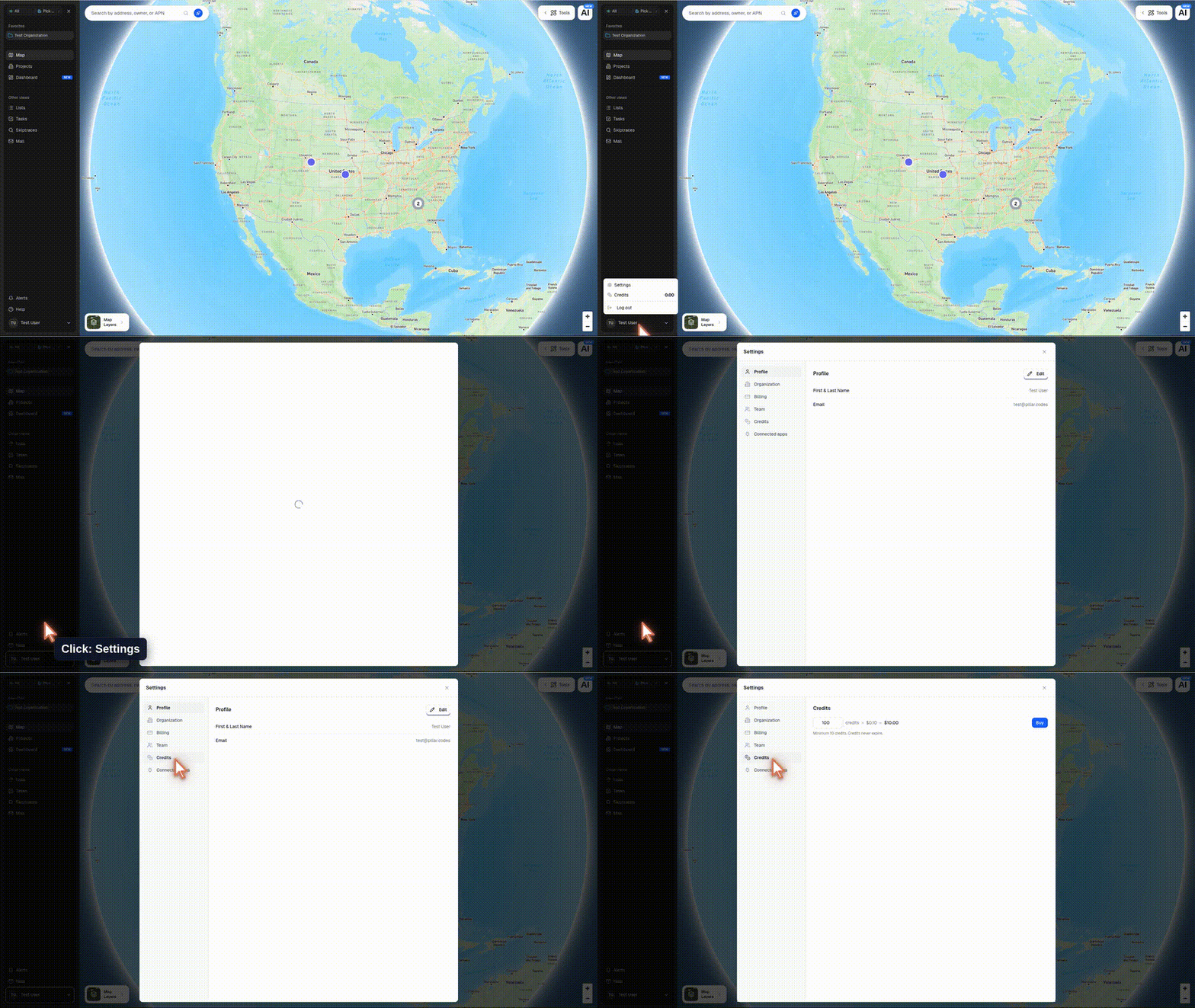
- Top-up credits — purchased on demand from Account → Credits → Buy.
Purchased credits are separate from promotional trial credits. Unused promotional trial credits expire when trial access ends. The live balance and applicable terms appear in the app.
Zoning reports#
Open a parcel on the map, then select Get Zoning Report from the parcel details panel. Pillar checks your balance before running the report. Free accounts have three included report samples. After those samples, an uncached report costs 3.5 credits. If no zoning data is available, the reservation is cancelled and no credits are charged.
Cached zoning reports can be opened again from the parcel's Zoning tab without another charge.
Fractional credit balances#
Some actions use fractional credits, so Pillar displays balances with
two decimal places anywhere the live balance appears, including the
sidebar user menu and Account → Credits. A balance like 96.50 stays
96.50, without floating-point artifacts or surprise rounding.
Credit balance and colors#
The balance indicator changes color as it drains:
- Green — ≥100 credits.
- Yellow — 20–99 credits.
- Red — under 20 credits. Consider topping up before running a large job.
Running out mid-job#
If you run out of credits mid-batch:
- Skip trace — stops where it is. Already-traced rows keep their data. You can resume after topping up.
- Agent — the session pauses and shows a top-up prompt. Top up to continue, or start fresh.
No action consumes credits you don't have — Pillar won't let you go negative.
Topping up#
From Account → Credits, enter the number of credits you need and select Buy. Credits cost $0.10 each, with a 10-credit minimum, and are added to your balance after the charge succeeds.
Who can buy credits#
Organization owners and admins. See Team & roles.