
Agent overview
What the agent can do, how to attach files, and when to use it.
Updated · June 2026
The Pillar agent is an AI assistant that lives inside the app. It can run workflows on your behalf — research a market, build a list, summarize a site, pull comps — while you do something else.
Behind the scenes, every agent session runs in an isolated, sandboxed microVM with tightly-scoped tool access. The agent can use Pillar's own data, the web, and a handful of focused utilities. It can't touch your account settings, billing, or other orgs' data.
When to reach for the agent#
Use the agent when the task is:
- Repetitive — "do this for every county in the metro."
- Research-heavy — "summarize everything you can find about recent development activity around this address."
- Open-ended — "find me 20 parcels that look like good BTR sites in the Tampa market."
Skip the agent when the task is:
- Single-click in the UI (just click the button — it's faster).
- Legally consequential (agent output should always be a draft).
- Extremely exact (for precise filter criteria, compose the filter yourself).
What the agent can do#
The agent has access to a focused set of tools:
- Map queries — run filters, pull parcel attributes, build lists.
- Geometry router — compute spatial relationships (distance, containment, drive time).
- Web search — tier-1 search for current news and market context.
- Read webpage — fetch a specific URL as clean markdown.
- Read attached files — use PDFs, CSVs, spreadsheets, and images you add to the chat.
- Upload files — save generated artifacts (CSVs, memos) to your org's storage.
- Project actions — create projects, add notes, create tasks.
It does not have:
- Skip-trace access (that would be too expensive to let it run freely — run enrichment manually).
- Billing or subscription controls.
- Access to other organizations' data.
- The ability to send outreach or messages on your behalf.
Starting a session#
Click the AI button in the top bar to open the agent panel. The agent has context of:
- Your organization.
- The current page you're on.
- Any parcel, list, or project you have open.
You can also start a fresh session by clicking New chat in the agent panel.
Attach files to the agent#
The agent composer accepts files anywhere the agent panel appears in Pillar. Drop a file onto the panel, paste an image into the composer, or click + and choose Upload file.
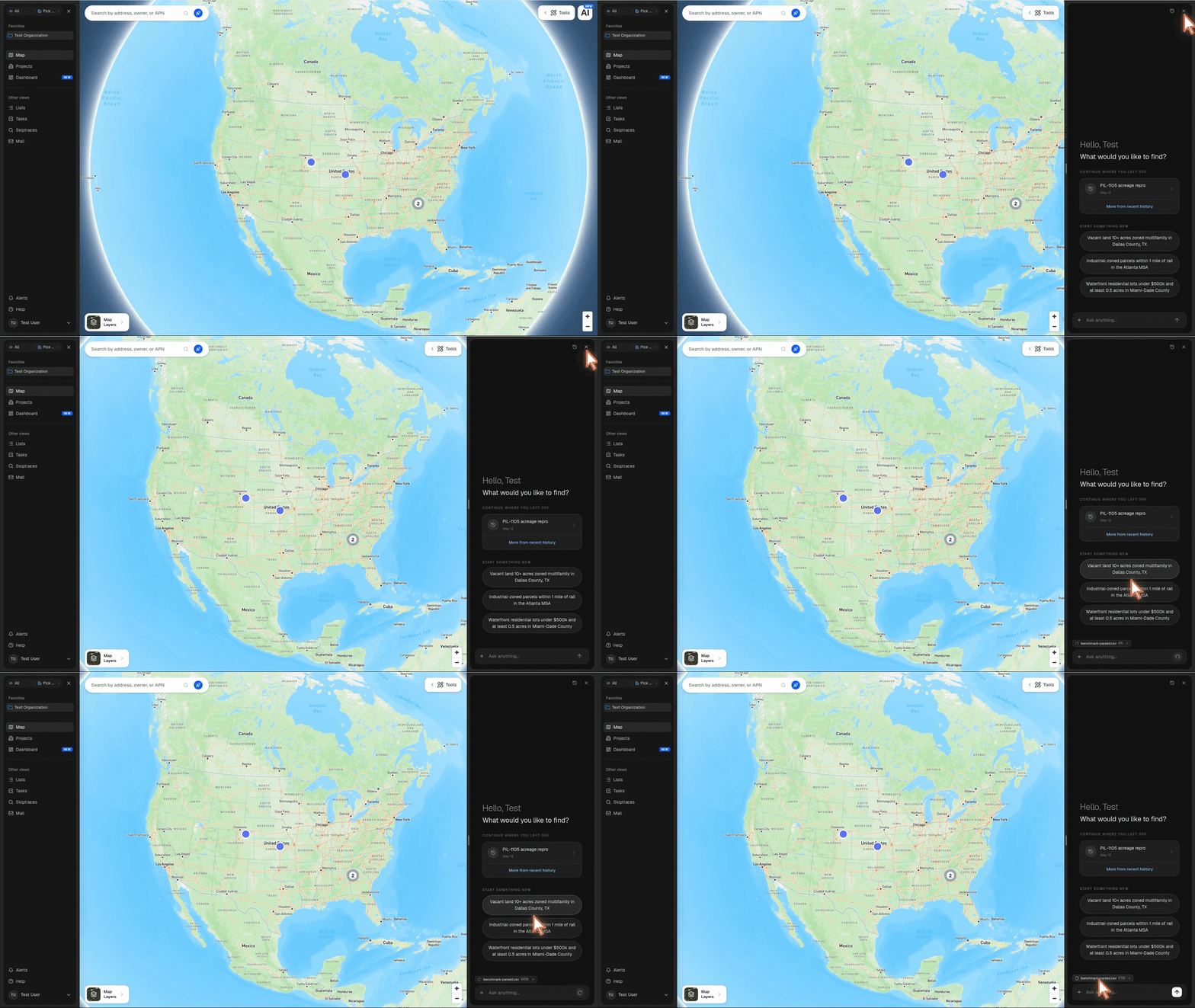
Before you send, Pillar shows each file as an inline preview pill with the filename, upload status, size, and a remove button. Once the upload finishes, type your prompt and press send. You can also send a file by itself if the attachment is the whole question.
Use attachments when the agent needs source material:
- PDFs — leases, offering memoranda, zoning documents, reports.
- CSVs and spreadsheets — site lists, comp sets, owner exports, pipeline imports.
- Images — screenshots, site photos, maps, pasted images from your clipboard.
Large files may take a moment to upload before they can be sent. If a file is rejected, remove it and try a smaller file or a supported format.
Inline widgets in MCP clients#
If you connect Pillar through an MCP-compatible client, Pillar can return interactive widgets inline instead of plain text only. Supported widgets include:
- Map + grid — result rows with map pins when the returned records include coordinates.
- Tasks board — your Pillar tasks as an interactive checklist.
- Kanban — projects grouped by status, with project cards in each column.
- Project card — a CRM project view with status, details, contacts, notes, tasks, files, and parcels.
Clients that do not support MCP widgets still receive the text result and links back into Pillar.
How sessions work#
Each chat is a session. Sessions:
- Run in isolated sandboxes — your data never leaks across sessions or between orgs.
- Time out after 6 hours of total runtime or 15 minutes of idle.
- Persist their state so you can leave and come back within the timeout window.
- Consume credits proportional to work done (more in Agent limits & safety).
What good agent usage looks like#
Short version: treat the agent like a capable junior analyst. It's great at doing homework; it's not a substitute for your judgment.
See Writing good prompts for concrete patterns.